
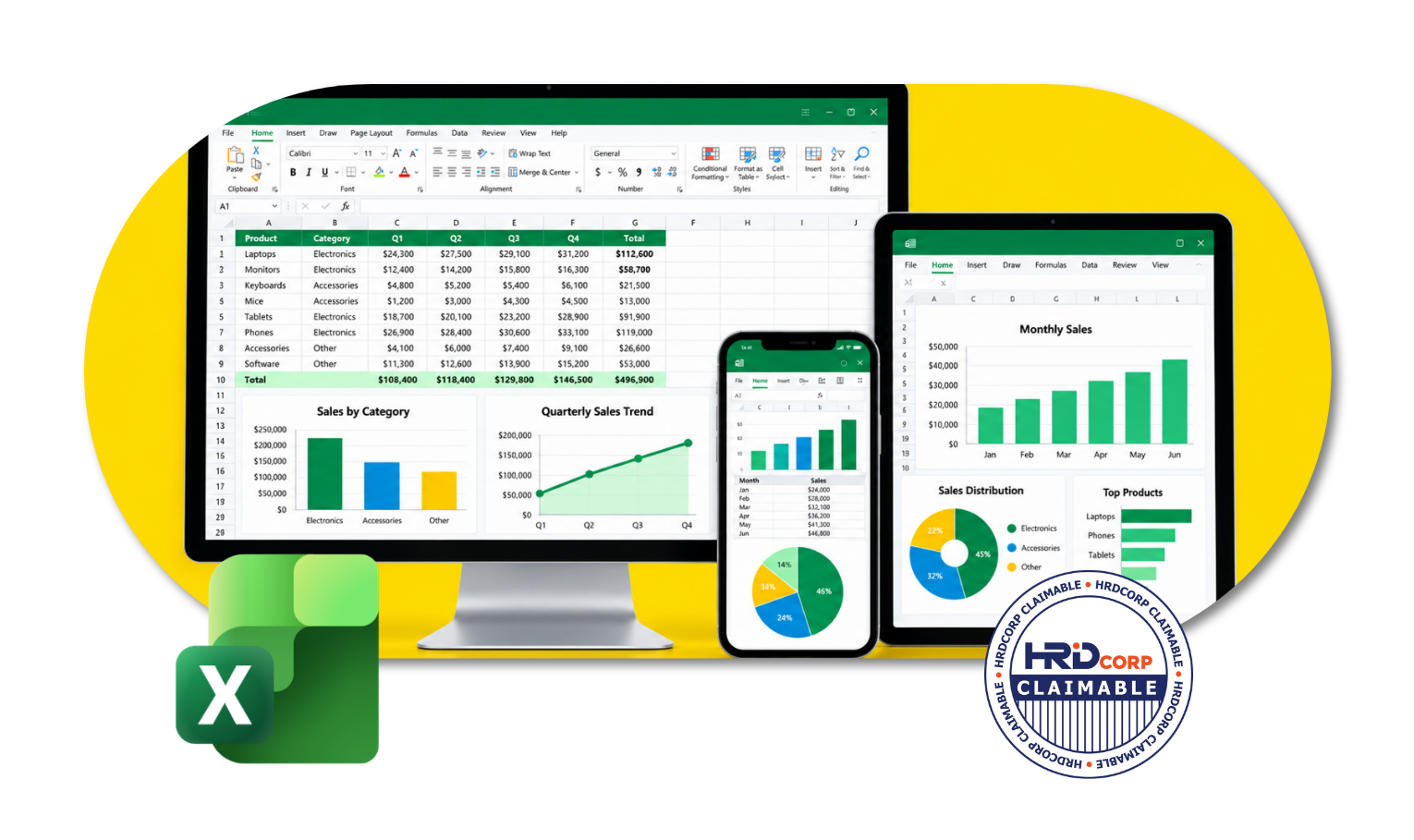
Microsoft Excel Intermediate and Advanced Level Course
Master Microsoft Excel with Confidence
Unlock the full potential of Excel and take your data analysis skills to the next level. Our comprehensive Microsoft Excel training program covers everything from the basics to advanced techniques, giving you the confidence to tackle any data-related challenge.
Who Should Join This Microsoft Excel Intermediate and Advanced Level Course?
This Microsoft Excel training program is perfect for anyone looking to improve their Excel skills, including:
- Business professionals and analysts
- Project managers and team leads
- Students and recent graduates
- Anyone looking to upskill or transition into a new role
HRD Corp Claimable Course
This course is not just eligible for HRD Corp claims, it’s a must-have opportunity for those looking to invest in their personal and professional growth. By taking advantage of the organization’s human resource development program and getting reimbursed for the cost of the course, you’ll not only be boosting your skillset and increasing your knowledge, but you’ll also be maximizing the benefits offered by your employer. Don’t miss out on this incredible opportunity to enhance your career and secure your future success. Make the investment in yourself today and claim your spot in this valuable course.
Course Outline
MODULE 1: ADVANCED DATA MANAGEMENT
- Sorting and Filtering by Multiple Criteria
- Custom Sorting and Advanced Filter Options
- Replacing Data
- Finding dan Replacing Cell Format
- Practice – Data Management
- Data Cleaning with AI Assistance (e.g., ChatGPT or Power Query with AI integration)
MODULE 2: DATABASE FUNCTIONS FOR DATA ACCURACY
- Creating Subtotals in a List
- Removing Subtotals from a List
- Sorting Data by Multiple Levels
- Using Custom Sort
- Using Data Validation
- Validating Data using a List
- Applying Subtotals, Custom Sorts, and Multi-Level Validation
- Customizing Error Messages and Data Validation Rules
- Extracting Online Data using AI Formulas
MODULE 3: USING AND CUSTOMISING TEMPLATES
- Copying Worksheets
- Hiding Columns and Rows
- Unhiding Columns and Rows
- Saving a Workbook as a Template
- Using a Template
- Editing a Template
- Inserting a New Worksheet
- Hiding/Unhiding a Worksheet
- Deleting a Template
- Modifying Workbook Templates
- Accessing Online Templates
- Creating Custom Templates with AI-Driven Suggestions
- Using AI Translate for Multi Language Data
MODULE 4: ADVANCED CHARTING AND VISUALISATION
- Inserting a column chart
- Inserting a line chart
- Inserting a bar chart
- Inserting a pie chart
- Resizing a chart
- Deleting a chart
- Adding a Chart Title
- Changing the Chart Background
- Changing a column, bar, line, or pie slice colours
- Changing the chart type
- Adding a Data Table
- Changing the Chart Layout
- Copying and moving charts
- Creating a 3-D Chart
- Adjusting 3-D View
- Inserting Sparklines
- Practice – Creating Charts
- Combined Chart Types and Secondary Axes
- Formatting and Customizing Chart Elements
- AI-Assisted Chart Recommendations (e.g., in Excel 365 Insights)
- Applying Sparklines for In-Cell Visualization
MODULE 5: ADVANCED FILTERING TECHNIQUES
- Creating a Criteria Range
- Using a Criteria Range
- Showing All Records
- Using an Advanced and Condition
- Using an Advanced or Condition
- Copying Filtered Records
- Using Database Functions
- Filtering Data by Complex Criteria
- Using Database Functions (DSUM, DAVERAGE)
- Extracting Unique Values and Removing Duplicates Using AI
MODULE 6: SECURING DATA WITH WORKSHEET PROTECTION
- Unlocking Cells in a Worksheet
- Creating Allow-Editing Ranges
- Deleting Allow-Editing Ranges
- Assigning a Password
- Opening a Password-protected File
- Removing a Password
- Protecting Worksheets and Workbooks with Passwords
- Allowing Selective Editing
- Managing Permissions for Workbook Sharing
MODULE 7: USING AUDITING TOOLS AND RANGE NAMES
- Jumping to a Named Range
- Using Range Names in Formulas
- Creating Range Names from Headings
- Applying Range Names
- Deleting Range Names
- Assigning and Managing Range Names
- Using Range Names in 3-D Formulas
- Displaying/Removing Dependent Arrows
- Displaying/Removing Precedent Arrows
- Showing Formulas
- Using Auditing Arrows and Formula Auditing
- Locating and Correcting Errors with Trace Features
MODULE 8: IMPORTING AND EXPORTING DATA
- Importing Data from Text Files
- Changing External Data Range Properties
- Removing the Query Definition
- Creating a Hyperlink
- Editing a Hyperlink
- Importing External Data
- Exporting Data for Use in Other Applications
- AI-Based Data Cleaning and Formatting
MODULE 9: USING ADVANCED FUNCTIONS FOR ANALYSIS
- Using the ISERROR Function
- Using the ROUND Function
- Using Financial Functions
- Using Text Functions
- Logical Functions (IF, AND, OR)
- Lookup Functions (VLOOKUP, HLOOKUP, INDEX, MATCH)
- Statistical Functions (COUNTIF, RANK)
MODULE 10: PIVOTTABLES AND PIVOTCHARTS
- Creating a PivotTable Report
- Adding PivotTable Report Fields
- Selecting a Page Field Item
- Refreshing a PivotTable Report
- Changing the Summary Function
- Adding New Fields to a PivotTable Report
- Moving PivotTable Report Fields
- Hiding/Unhiding PivotTable Report Items
- Deleting PivotTable Report Fields
- Creating a Page Field Report
- Formatting a PivotTable Report
- Creating a PivotChart Report
- Grouping Data Manually
MODULE 11: SCENARIO ANALYSIS AND DATA TABLES
- Creating a Scenario
- Displaying a Scenario
- Editing a Scenario
- Creating a Scenario Summary Report
- Working with Data Tables
- Placing Formulas in Data Tables
- Creating a One-Variable Table
- Creating a Two-Variable Table
- Setting Up Scenarios for ‘What-If’ Analysis
- Creating and Managing Data Tables
- Generating Scenario Summaries with Predictive AI Tools
MODULE 12: COLLABORATIVE WORKBOOK TRAINING
- Saving a Shared Workbook
- Viewing Users Sharing a Workbook
- Viewing Shared Workbook Changes
- Changing the Update Frequency
- Highlighting Changes
- Managing Conflicting Changes
- Resolving Conflicting Changes
- Setting Change History Options
- Adding a History Worksheet
- Reviewing Tracked Changes
- Tracking Changes and Reviewing History
- Comparing and Merging Workbooks
- AI-Powered Version Management
MODULE 13: CONDITIONAL FORMATTING AND CUSTOM FORMATS
- Applying Data Bars, Color Scales, and Icon Sets
- Creating Custom Number Formats
- AI-Based Recommendations for Formatting
MODULE 14: AUTOMATING TASKS WITH MACROS
- Recording and Running Macros
- Editing Macros for Flexibility
- Assigning Macros to Buttons and Quick Access Toolbar
- Assigning a Shortcut Key
- Using a Shortcut Key
- Deleting a Macro
- Deleting a Macro Button from QAT
Why You Should Enroll With Us?

Enrolling with us offers you numerous benefits, including:
Expert instruction
Our instructors are experienced professionals with a deep understanding of Microsoft Excel and a passion for teaching. They will guide you through every step of the process and provide you with hands-on training and practical tips.
Comprehensive modules
Our course covers everything from the basics of Microsoft Excel to advanced techniques for creating stunning visual effects. Whether you’re a beginner or an experienced person, you’ll find the training you need to take your skills to the next level.
Real-world experience
Our training program features hands-on exercises and real-world projects to help you apply your newly acquired skills and gain practical experience. Upon completion, you’ll be equipped to handle any challenge in Microsoft Excel with confidence.
Valuable networking opportunities
By enrolling in our course, you’ll have the opportunity to connect with other aspiring professionals. These connections can be valuable for future projects, collaborations, and career opportunities.
Career advancement
By mastering Microsoft Excel, you’ll gain the skills you need to advance your career and stand out in the job market.
So why wait? Invest in your future success and enroll in our training today!
If you’re interested in learning more about this course and what it has to offer, don’t hesitate to reach out to us! We’d love to hear from you and answer any questions you may have. Our friendly and knowledgeable team is here to help, so please feel free to reach out to us at 1700-81-5520 or email at training@excelacademy.my.
Whether you’re still considering enrolling or have already decided, we’re here to support you every step of the way. So go ahead, and get in touch with us today!